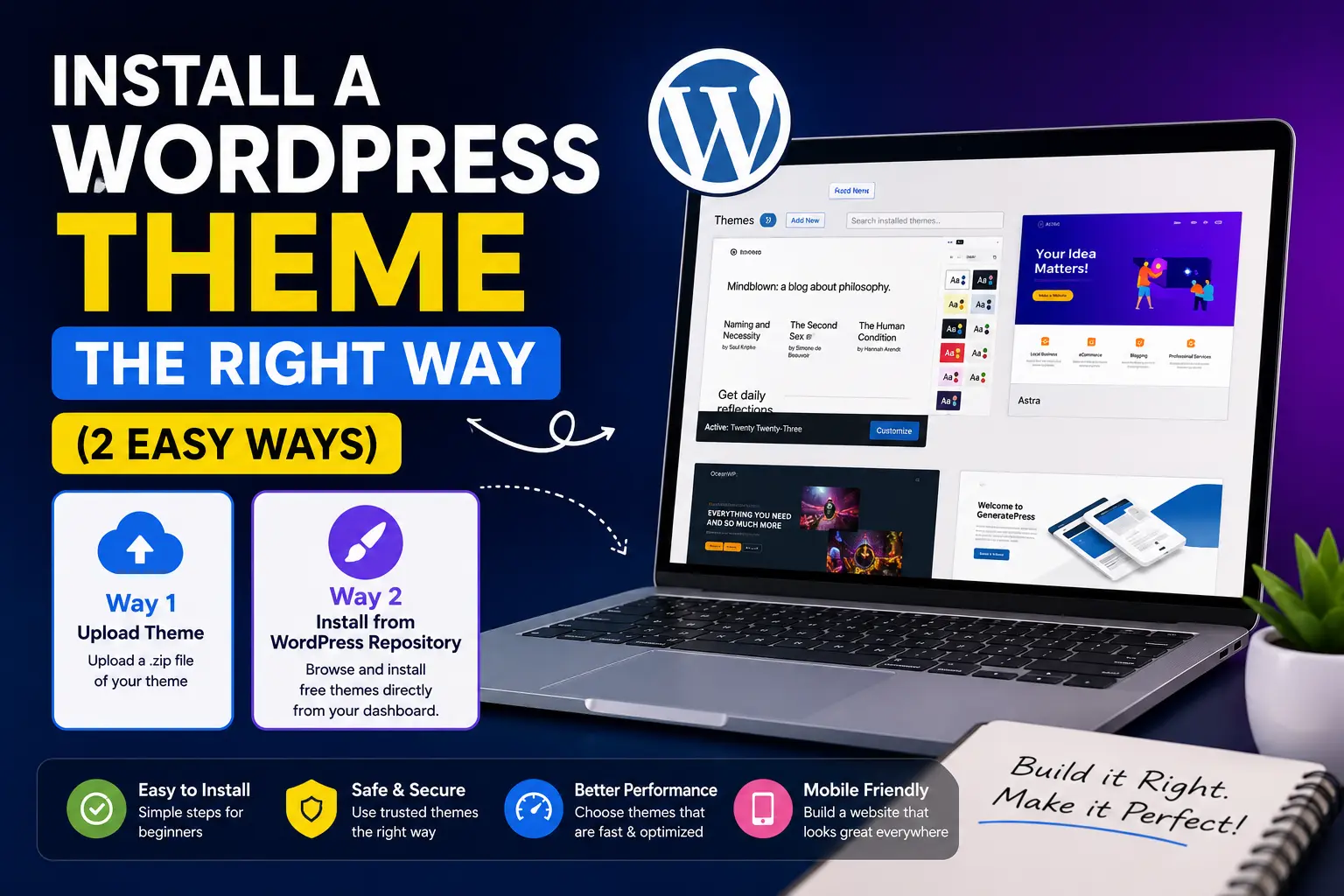
TL;DR: To install a WordPress theme, choose the method that matches your theme type. Free themes can be installed directly from the WordPress dashboard, premium themes are uploaded as ZIP files, and FTP should only be used when standard installation methods fail. This guide explains how to install a WordPress theme correctly, avoid common mistakes, and complete the essential setup after activation.
WordPress theme installation process is less than a minute. However, keeping your website speedy, safe and simple to maintain moving forward is a different equation.
That gap disrupts more site owners than any other part of the WordPress set up. You click install, you click activate and the design changes in an second.
This guide takes out Step by Step Procedure for Install a WordPress Theme ;You’ll get 2 Easy Methods that saves your time Efficiently, Not Blabb or fluff – Just what you Need to do.
At the End, You will learn the default install methods and when to use each one, the checklist that professionals go through before ever clicking Install, what mistakes result in the most support tickets, and best practices that prevent a WordPress theme installation from becoming a maintenance headache 6 months later.
In case you are still in the process of setting up WordPress itself, check out our post on how to launch a WordPress blog website for that covers step one to six as a complete Beginners Guide.
What Is a WordPress Theme and Why It Matters
WordPress theme layers is design and layout of your site – what fonts you use, the colours that appear on your page structure or menus without interfering with content.
Themes in the free section install directly from your dashboard, but premium themes that are often a ZIP file you manually upload. Depending on which type you have, each one of the methods below will apply to you.
Why Do You Need To Install A WordPress Theme?
Hitting Install does more than that, it changes colors. What WordPress does is it copies a folder of files into wp-content/themes/ on your server, and then reads that folder to know how your site renders.
A theme folder typically contains:
- Template files(PHP): used to control the layout on your homepage, posts, archives and other types of pages.
- A stylesheet (style. css): determines colors, fonts and spacing as well all the necessary information about your them;
- JavaScript files: The control or actions of animations, sliders and interactivity.
- Functions: The function registerNave also is the hook that registers menus, widget areas and theme-specific features.
- Theme options settings: stored in your WordPress database, not the theme folder itself.
This is the part most guides leave out: installing a theme doesn’t change WordPress or your content. It changes how that content looks when presented by WordPress.
Your data, posts, pages and media remain the same in your database; only layer of presentation is changed. It is also partly the reason why a theme switch does almost never delete anything, although in order to make it work correctly and not break your layout you will have these checks.
Before Installing: The Professional Checklist
Most tutorials skip over the Most. Here’s what to check first:
- Back up your website – Must use an up to date full backup (files + database) before applying any switch in theme, restoring is instant if something goes wrong.
- Check your PHP version – Most modern themes need you to have PHP 7.4 or greater, head over under Tools > Site Health for further info on your specific needs!
- Verify your WordPress version – But older installs can interfere with the capabilities of a new theme.
- Check plugin compatibility – Check whether the plugin that a theme needs or is conflicting with already has its own documentation.
- Read the documentation – A good reading pays off with hours of guessing error saved after installation.
- Download only from trusted sources – Stick to WordPress, Organized marketplaces or the developer directly.
- Test on staging when possible – A staging site allows you to identify issues before your real live visitors do.
Method 1: Install a WordPress theme from the Directory
Here’s how you add a totally free WordPress theme, builtin to your dashboard.
- Navigate to Appearance → Themes
- Then Press Add New
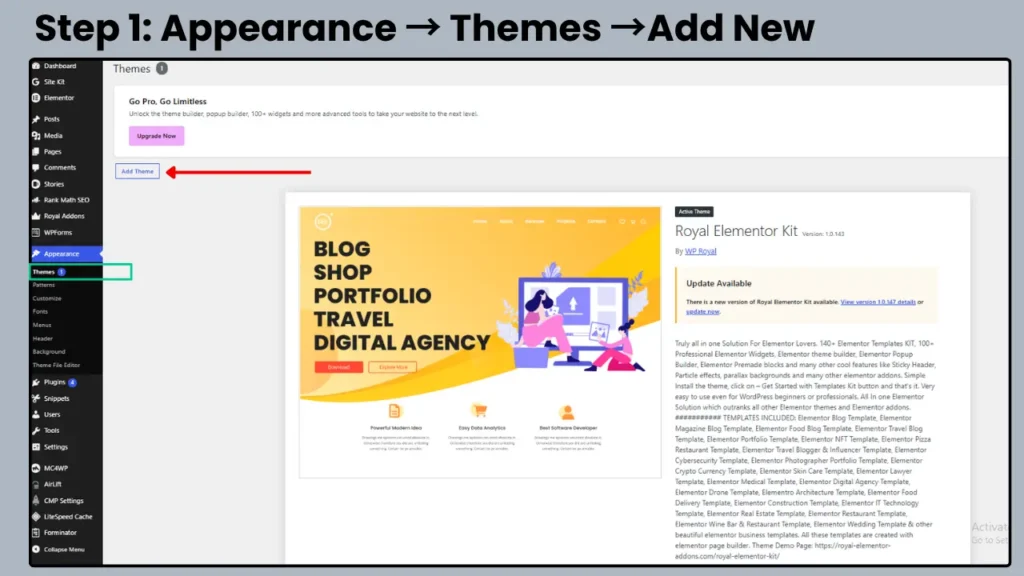
3. Search by name, or filter by layout, industry, or feature.
4. Click Preview to see it applied to your content or Install if you want to add it.
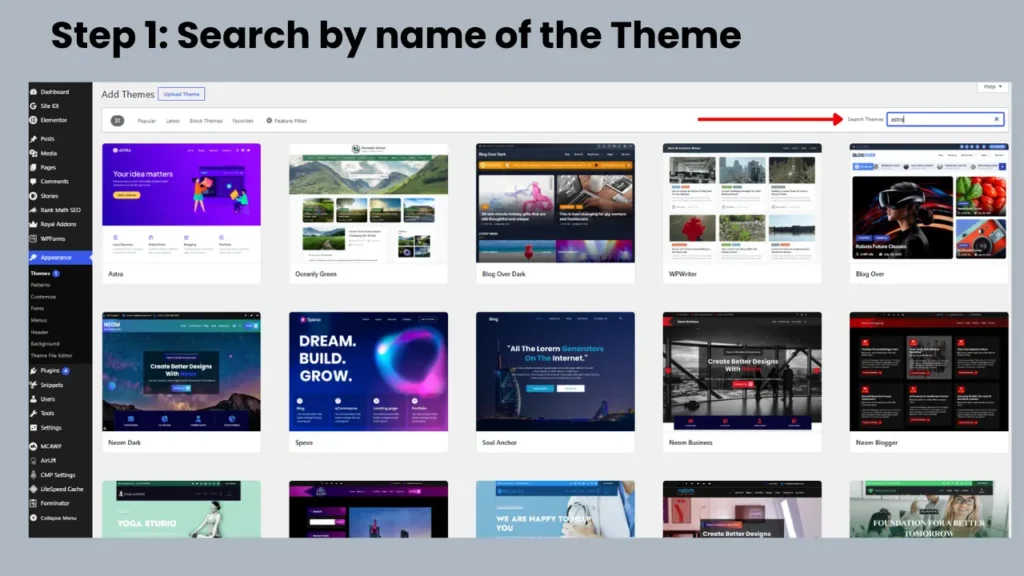
5. Click Activate once installation finishes.
When to use it: whenever you want a theme and there are thousands of free themes available in the official directory.
Pros: no file management, all themes are manually checked for security and code quality on submission, updates push automatically.
Cons: free themes have less design flexibility and support than premium ones, plus popular ones can look generic without a unique touch
Method 2: Install wordpress theme from zip
Premium themes like ones you can get from ThemeForest or from Somewhere.
- Download the theme as Zip file. Don’t unzip it yet.
Right under Appearance > Themes > Add New pop on Upload Theme.
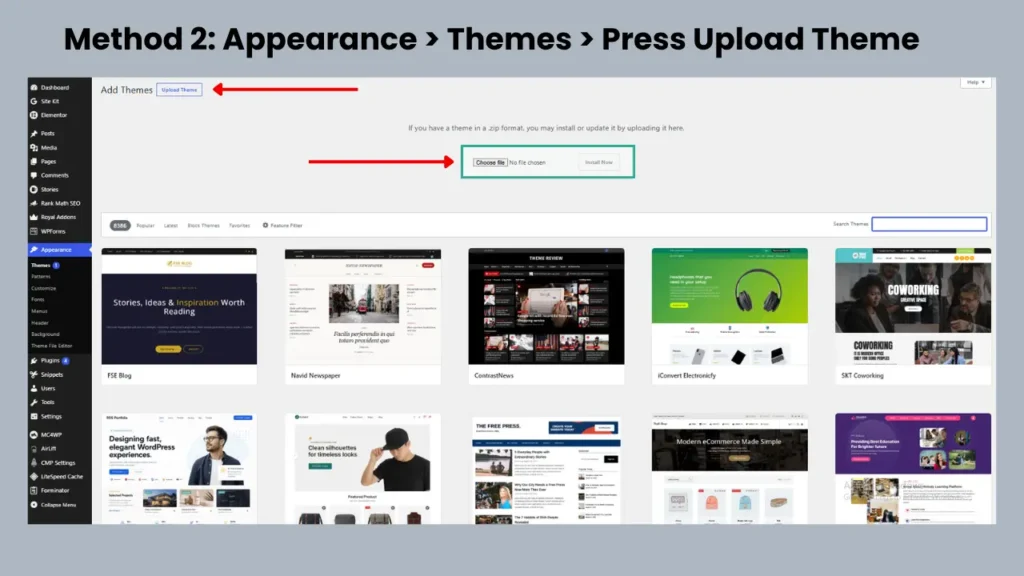
3. Next Click ChooseFile → and Pick the ZIP
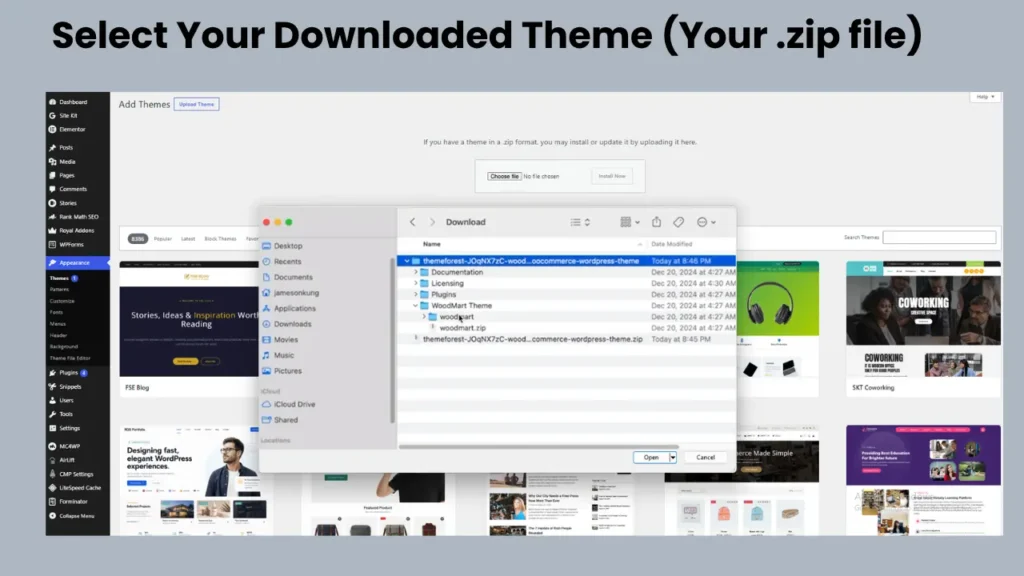
4. Click Install Now, then Activate.
That’s It You have Successfully Installed wordpress Theme from Zip File.
Common error: “The package could not be installed. The theme is missing the style.css stylesheet.”
Why it occurs: The ZIP has been opened and WordPress couldn’t find a valid style.css file at the root. The three common reasons:
- You uploaded the entire marketplace package – books, license files and demo content included; instead of just the installable theme ZIP within it.
- The actual file isn’t a theme but one with plugin inside or is corrupted.
- Start with: unzip and verify style. css that sits in the top folder, and upload again.
What Happens When You Install a WordPress Theme?
Before installing a WordPress theme, it’s worth understanding what makes a theme a good long-term choice. Factors like speed, responsiveness, customization options, compatibility, and ongoing support can have a significant impact on your website’s performance and user experience.
If you’re still deciding which theme is right for your site, explore our guide on Things To Look For In A WordPress Theme to make a more informed choice before moving forward.
The choice depends on the scale of deployment your layout requires:
Page Templates: Define layout structures for specific types of internal pages (e.g., about page, archive layout) within a single theme.
Website Templates: A complete, cohesive multi-page design ecosystem (headers, footers, styles) meant to spin up a full site instantly.
Landing Page Templates: Hyper-focused, standalone single-page layouts stripped of global site navigation, engineered exclusively for marketing conversions.
Top Resources: ThemeForest (granular themes), Envato Elements (all-in-one assets), Framer/Figma Community (modern standalone UI designs).
Divi is an all-in-one visual theme framework. It rules the creative market with its powerful layout engine and generous lifetime-use pricing, but its proprietary shortcode dependency means transitioning away from it later leaves behind messy code tags.
Elementor functions as a high-speed plugin overlay. It features a superior ecosystem of third-party widgets and a faster workflow interface, but it demands an ongoing yearly subscription for high-end features.
The Biggest Mistakes People Make
Activating before installing required plugins
- Solution: Before activating the theme, install and activate all plugins described in documentation. Numerous premium themes rely on certain plugins for rendering, and bypassing this sequence leads to broken layouts or missing content blocks.
Ignoring child themes:
- Solution: Before Customizng, create or install a child theme If you skip this every time later theme updates will overwrite your changes – read about that below.
Editing theme files directly.
- Fix: Never edit a parent theme’s files through the dashboard’s built-in editor. Direct edits get wiped the next update, and one typo in a PHP file can take the entire site down.
Using nulled themes:
- Solution: Download themes only from official markets or directly from the developer. Nulled (or pirated) themes are a well-known way to spread malware, often bundled with backdoors and without possibility of security updates.
Importing demo content immediately:
- Cure: Run the demo import after checking exactly what it does overwrite. Importers wholesale replace existing pages, menus and widgets – that can mean real content loss on the live site in seconds.
Installing multiple page builders:
- Solution: Use only one page builder plugin per site. Running two of them simultaneously clashes shortcodes and CSS, being one of the most common cases that breaks a layout.
Should You Use a Child Theme?
Yes – in most cases a successful child theme is standard professional practice, not some advanced-user luxury.
An child theme will inherit everything from its parent and keep your customizations in a different folder. With a child theme, when the parent file ships with a security patch or feature update WordPress only overwrites those files that reside in the parent. Your child and everything within it will be left alone.
For Example: say you have customized your colours of buttons in the theme using custom CSS write it directly to parent theme. Note: The subsequent update of the parent theme overrides style. Without css and just totally your changes disappear. The same edit in a child theme’s stylesheet, and the update ignores it.
Only skip the child theme if you will not use or change any file in your parent theme, using only a Customizer, page builder or plugins. When you decide to edit the CSS, templates or functions.php.
What to Do After You Install a WordPress Theme
If the theme has recommended plugins, please install them according to the documentation.
- Configure your Homepage using Appearance > Customize or with your page builder.
- Create primary and footer menus in Appearances > Menus.
- Add widgets to your sidebar and footer areas.
- Go to Appearance »Customize and upload your logo as well as a site icon.
- Pick your typeface and brand colors
- Early in the writing process update your permalink structure under (under Settings > Permalinks) – once.
If you’d rather skip manual setup, Our custom web development team can select, install, and configure a theme that fit for your business.
A great website should work as hard as you do. Hattrick Web Works creates fast, SEO-friendly websites and scalable web solutions that help businesses increase visibility, earn trust, and convert more visitors into customers.
Troubleshooting Common Problems
White screen (blank page):
Solution: Use wp-config to increase your PHP Memory Limit Go to php then look for plugin conflicts. A blank screen almost always indicates PHP ran out of memory before it could print an error message at all; if increasing the limit does nothing, deactivate any plugins with FTP one after another until you find a conflict.
Uploading a theme: “The package could not be installed”.
Fix: Make sure that you’re uploading the installable theme ZIP, not the whole marketplace download – unzip and check style. And so here nothing to see before css.
Memory limit / fatal error:
Solution: Increase the PHP memory limit to at least 256M via wp-config. We will be using php or the control panel of your host. Default shared hosting limits which are usually 32–64MB such as those for basic plans is often far too low when modern themes require several plugins to work at the same time.
Missing stylesheet:
Solution: Re-upload the theme ZIP file and check style. css lives in the root folder of a theme. This occurs when an invalid stylesheet is uploaded, which indicates that the wrong file was selected during upload.
Broken layout after activation:
Solution: Install and activate the plugins that are noted inside your theme Required-Plugins notice. Most themes rely on companion plugins to draw the layout their developers intended, and not running that is number one cause of a failed design just after activation.
CSS not loading correctly:
Solution: Please clear your caching plugin and browser cache, hard refresh the page. In the case of newly activated themes, stale cached stylesheets are a leading reason that new theme styling is not immediately visible.
Security Best Practices
Theme security is a serious business. According to Patchstack’s WordPress security research data from 2026, emerging between 9% of new vulnerabilities will be attributed for themes and the remainig portion – largely fixed by plugins which still adds up on dozens theme-related cybersecurity events every year.
- Never use nulled themes: Cracked files are a recognized distribution vector for backdoors and stealth malware, so using one relinquishes any legitimate route of updating.
- Update regularly: The problem with theme updates that patch the very vulnerabilities researchers publish is one down, a known door left wide open by delaying its update and reactively implementing measures.
- Delete unused themes: An inactive theme in wp-content/themes/ can still be exploited — delete anything that you are not using.
- Use trusted developers: Use themes that have shown they can be updated regularly and supported well, not the cheapest one.
Scan uploads: Scan New Themes Before Activation On Live Site
The top free themes emphasize clean block footprints and fast load metrics:
Astra: Sub-50KB powerhouse; unbeatable multi-purpose starter templates.
GeneratePress: The absolute gold standard for developer-first minimalism and speed.
Blocksy: The best Gutenberg/Full-Site-Editing optimization for modern blocks.
Hello Elementor: A completely unstyled, blank canvas ideal for users building exclusively with Elementor Pro.
Conclusion
In summary to Install a WordPress themes according to their type: dashboard search route if you’re using free ones; ZIP upload for premium themes; FTP only available when “the easy way fails”. After activating your theme, put some hours into customizing and testing the graphics on mobile before launch.
Hattrick Web Works offers end-to-end site design services, including theme selection and installation as part of a complete build at an affordable price – bringing you the most cost-effective website design service in Chennai.
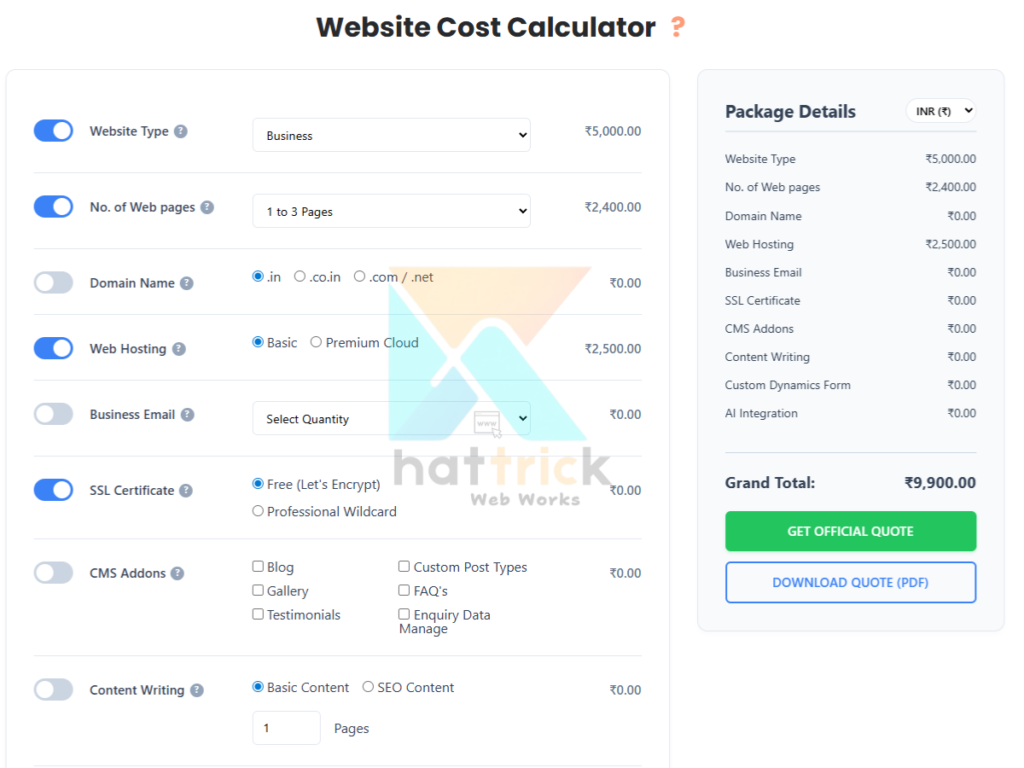
To get a true Price of how much it would cost for hosting, theme, and setup Estimation through Hattrick’s website cost calculator or contact us with questions where needed.
Frequently Asked Questions
Can I change themes without losing content?
Yes. All your posts, pages and media reside in the WordPress database which is completely separate from theme files so changing themes never loses them.
Do plugins disappear when I change themes?
No, it remains! You may need to reconfigure plugin-specific settings tied to your old theme layout, such as specific widget placements.
Can I switch back to my old theme?
Yes, as long you are not deleting it. WordPress allows you to see all the inactive themes at (Appearance> Themes) until removed by hand.
Is FTP required to install a WordPress theme?
No FTP only comes if the dashboard upload fails due to file size limits or hosting restrictions - most installs don’t need it.
How many themes should I install?
Keep only your active theme plus one official WordPress default theme (like Twenty Twenty-Five) as a fallback, and delete the rest to reduce your site's attack surface.
Is it safe to install a free WordPress theme?
Yes, if you download it from the official WordPress.org theme directory, since every listed theme passes a security and coding review before publication. Themes from unverified third-party sites carry more risk.
How much does a WordPress theme cost?
Free themes cost nothing, while premium theme pricing typically ranges from $30 to $300 depending on features and support.
For an exact figure covering hosting, theme, and setup together, You can Go with Hattrick Developers.
what is the difference between Elementor Free vs Pro
Choose Elementor Free to design pages. Choose Elementor Pro to build a scalable, conversion-focused website.
- Free Builds Pages. Pro Builds Systems.
Elementor Free is great for designing individual pages. Elementor Pro lets you create site-wide templates (header, footer, blog, WooCommerce, popups), so one edit updates your entire website. - Pro Reduces Plugin Dependency.
Most users focus on Pro's extra widgets, but the real value is replacing 3–5 separate plugins (popup builder, forms, theme builder, dynamic content), improving maintenance and compatibility. - ROI Beats Features.
If you're running a business website, Elementor Pro isn't just about design—it's about converting visitors with forms, popups, and dynamic content. The time saved often outweighs the license cost.