TL;DR: Secure your WordPress site by focusing on what matters most: keep WordPress and plugins updated, use strong passwords with 2FA, choose secure hosting, enable backups, and add a trusted security plugin. This 27-step WordPress Security Checklist prioritizes the highest-impact actions, explains common vulnerabilities, compares top security plugins, and outlines ongoing maintenance to protect your website in 2026
Thousands of WordPress websites get attacked every day, but they are not targeted by human hackers individually. Automated bots scour the internet for out-of-date plugins, weak passwords and unsecured login pages – as well as many other common vulnerabilities.
Your site may match a template, and within minutes you can be the victim of an attack. The encouraging part is that most successful attacks exploit issues that are relatively easy to fix. Following a structured WordPress Security Checklist helps you address these weaknesses before attackers can take advantage of them.
Most compromises don’t originate from advanced hackers attempting targeted attacks against you. They spring easily from common and avoidable issues: an un-updated plug-in, a reused password, a never-hearded hosting environment.
WordPress core itself is pretty secure – The real risk almost always lies in extensions, server configuration and maintenance habits that fall once a site goes live.
This is not a typical “update your plugins” type list. It is a prioritized wordpress security checklist, in the order which each step actually reduces risks.
Is WordPress Secure?
Over the years, WordPress has come to power nearly 50% of all on-line sites. That is the exact scale that draws so much attention from attackers.
automated scanning tools target the platform because success at scale makes economic sense for whoever is running them, not because the software is inherently weak.
What Most People Get Wrong
It distinguishes these two things that get mixed up all the time:
- WordPress core Security: Everything built on top of it. A dedicated security team maintains Core, with a fast and disciplined patch cycle
- Plugins and Themes: The situation is different for plugins and themes – Anyone can publish one, the review process that checks new submissions just check policy compliance without performing a more extensive security audit
That difference is one of the most useful things to Understand before you ever go near any checklist.
Myth vs Reality
Popularity isn’t insecurity. A properly maintained wordpress website, which is continually updated and hosted only on the best WordPress servers for business websites gives a decent head start in terms of security. The danger is when maintenance does not happen.
If you’re starting a new site rather than hardening an existing one, it’s a good idea to get the foundations correct from day 1. our guide on how to start a WordPress website properly will help you with set up choices that make security simple later and not harder. Once your site is up and running, following a WordPress Security Checklist makes it much easier to maintain that strong security foundation over time.
|
Myth
|
Reality
|
|---|---|
|
WordPress is insecure
|
Poor maintenance is the bigger risk, not the platform
|
|
Paid hosting makes you secure
|
Hosting helps. It doesn't eliminate risk on its own
|
|
Security plugins solve everything
|
Security is Layered, One Install isn't a solution
|
How WordPress sites actually get hacked
The majority of WordPress security advice available simply tells you what to do without really getting into the actual reason why they matter. Once you see the actual attack path, every item below stops feeling arbitrary.
- Automated bot
↓ - Scans your website
↓ - Finds an outdated plugin
↓ - Matches it to a known vulnerability
↓ - Attempts the exploit
↓ - Uploads malware
↓ - Creates a hidden admin account
↓ - Injects spam content
↓ - Google flags the site
↓ - Traffic drops
This Case Studies Proves WordPress core still Secured
People’s after realising attacker-journey assumes, this the standard route, and more common than many site owners think. According to Patchstack’s 2026 whitepaper, the weighted median time from a vulnerability being disclosed until it was first exploited at 5 hours.
In 2025, plugins still were the origin of 91% of new vulnerabilities and not WordPress core.
So the gap between “a vulnerability exists” and “bots are exploiting it” is often shorter than a workday. An outdated plugin gets caught in a scan that’s already running, long before any hacker notices you specifically.
Once a compromised site starts serving spam or malicious redirects, Google’s Safe Browsing system flags it, and browsers start warning visitors away. That’s when a technical problem turns into a revenue problem.
Restoring lost rankings takes a significant amount of time and it is one of the many reasons our work with SEO services typically begins by untangling precisely this kind of mess.
Each item in the WordPress security checklist below breaks this chain at some point, whether it be before your bot sees an opening, before the exploit lands.
The Ultimate WordPress Security Checklist
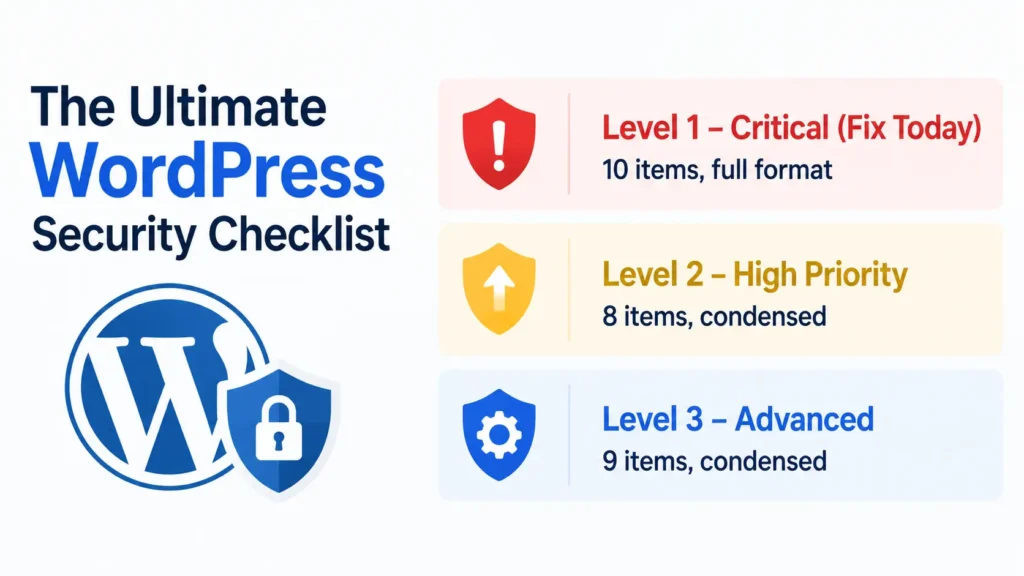
Use this WordPress Security Checklist to prioritize the most important security tasks based on their impact.
The checklist is organized into three levels
- Critical
- High Priority
- Advanced
so you can secure your WordPress site step by step, starting with the fixes that reduce the biggest risks.
Level 1 – Critical (Fix Today)
These 10 actions cover the most common causes of WordPress compromises. Do them before anything else on this list.
1. Update WordPress Core:
- Why it Matters: Core updates fix the few vulnerabilities that WordPress itself has, and as well as quite a lot of security-relevant bug fixes
- How to do It: In Settings, Enable background updates for minor releases Learn his: Manually from the Dashboard
Time required: 5 minutes.
Difficulty: Easy.
Common mistake: Disabling auto-updates after a bad experience with a major version, then forgetting to check manually.
2. Update Plugins:
- Why it Matters: Plugins make up the vast majority of known WordPress vulnerabilities, out-dated plugin versions are the most common entry point attackers rely on.
- How to do It: Weekly overview of the Plugins screen and update everything with a pending release, prioritize plugins flagged with a security notice.
Time required: 10-15 minutes weekly.
Difficulty: Easy.
Common mistake: Don’t update everything blindly without testing on staging first(which may affect your Live Site).
3. Remove Unused Plugins:
- Why it Matters: Even though a plugin is deactivated, if it remains installed on your web space, an exploitable wordpress security vulnerability could have serious consequences.
- How to do It: Delete It- not deactivate the plug-ins that you’re no longer using.
Time required: 10 minutes.
Difficulty: Easy.
Common mistake: Assuming Deactivating alone removes the risk, the code still remains on your server.
4. Remove Unused Themes:
- Why it Matters: Deactivated themes are never updated by their developers and can be a silent source of file based exploits.
- How to do It: Only store your active theme along with a single default WordPress theme as fallback, remove the others
Time required: 5 minutes.
Difficulty: Easy.
Common mistake: Keeping outdated themes just in case them whenever the theme no longer receives updates..
5. Make Use of Strong Passwords:
- Why it Matters: Weak or reused credentials remain one of the most basic ways into a WordPress admin panel.
- How to do It: Require unique, randomly generated passwords for every user with a password manager, enforced through a password-policy plugin if needed.
- Time required: 15 minutes.
Difficulty: Easy.
Common mistake: Enforcing strong passwords only for admins and ignoring contributor/editor accounts.
6. Enable Two-Factor Authentication:
- Why it Matters: Prevents most automated logins even if password is compromised.
- How to do It: Install a 2FA plugin, and require it for every account with publishing or admin access.
Time required: 15 minutes.
Difficulty: Easy.
Common mistake:
Turn on 2FA for only the master admin account and leave privileged users out.
7. Choose Secure Hosting:
- Why it Matters: Hosting level protection – Much of the protection happens at hosting level, server firewalls will catch what you can bung up.
- How to do It: Verify that your host includes server-side firewalling, isolated hosting accounts and regular backups; Avoid if you are on a shared environment with no account isolation.
Time required: 1-2 hours of Research.
Difficulty: Moderate.
Common mistake: Assuming “managed WordPress hosting” automatically means comprehensive security which offerings vary widely.
8. Install SSL:
- Why it Matters: SSl Encrypt data in transit, and as a fundamental trust-level signal ranking factor.
- How to do It: Almost every host on the web has free SSL certificates (e.g. Let’s Encrypt), so enabale that and for with a 301 redirection HTTPS sitewide!
Time required: 15 minutes.
Difficulty: Easy.
Common mistake:
Enabling SSL but leaving mixed content (HTTP resources) loading on HTTPS pages.
9. Automatic Backups:
- Why it Matters: Having a recent, working backup is the difference between a few hours of inconvenience and losing your business.
- How to do It: set automatic daily backups on an off-server storage (cloud storage, not only the same hosting account)
Time required: 35 minutes.
Difficulty: Easy.
Common mistake: Keeping backups on the same server that gets hacked.
10. Limit Login Attempts:
- Why it Matters: Brute-force login attempts are basically the background noise of any public WordPress site.
- How to do It: Install a plugin that limits login attempts, or set this up in your security plugin’s firewall.
Time required: 45 minutes.
Difficulty: Easy.
Common mistake: Setting the lockout Threshold – If too low, might lock legitimate users out or if its set very high to be meaningful (you also need a history of login failed attempts).
Level 2 – High Priority
- Install a Firewall: Web application firewalls filter out malicious requests trying to reach WordPress before these infection attempts can run, providing a layer of protection plugin updates alone cannot guarantee.
- Use a Security Plugin: A dedicated wordpress security plugins solution places firewall rules, malware scanning and login monitoring all in one place, scroll down for the comparison to choose which situation fits you best.
- Turn Off XML-RPC (If You Do NOT Need It): XML-RPC enables remote publishing and pingbacks, but it is also a popular DDoS and brute-force attack vector. Turn off if you don’t use the WordPress mobile app or remote publishing tools; leave on if Jetpack is a necessity, or your mobile workflow depends upon it.
- Protect wp-config: php. It contains the credentials to your database. That is, move it one directory above your web root (which you cannot control) or block access directly at the server.
- Change Default Admin Username: You shall never use “admin” as a username; it will always be the first guess in any automated brute-force attempt. Set up a new Administrator account using an unique user name and remove old one.
- Use Correct File Permissions: Using blog setups sets directories to 755 and files are set as follows: wp-config. php locked down to 600 on supported. More permissive permissions give attackers a more direct route to modifying files.
- Disable Directory Browsing: Add a directory-listing block to your server config. It prevents visitors from seeing the raw folder contents, so they can’t have casual reconnaissance over our file structure.
- Update PHP Version: Run a currently supported PHP version. Older versions lose security patches and often run WordPress more slowly as a side effect.
Level 3 – Advanced
- Enable Security Headers: Use browser headers like Content-Security-Policy and X-Frame-Options to lower the risk of clickjacking and scripts-injection attacks.
- Disable PHP Execution in Uploads: Prevent PHP execution in wp-content/uploads – a common used way to smuggle an operational backdoor entered as image or document.
- Database Security: If your hosting setup allows it, change the default WordPress table prefix and restrict direct database access to trusted IPs only.
- Activity Logging: Track logins, plugin updates & content edits so unexpected actions can be seen before a full compromise.
- Malware Scanning: Get automated scans instead of manual checks, more malware gets caught by regular, automatically-scheduled passes than ad-hoc human review.
- File Integrity Monitoring: Get alerted the moment a core file changes unexpectedly, which is often the earliest sign of a successful exploit.
- Scheduled Security Audits: Rather than reviewing users, plugins and settings piecemeal, set a calendar reminder, quarterly at minimum.
- Protect the Database. Keep database backups encrypted and stored separately from file backups, since a database dump often contains as much sensitive data as the files themselves.
- Create an Incident Response Plan. Document exactly who does what if the site is compromised: who restores the backup, who contacts the host, who checks Google Search Console. Very few WordPress guides cover this, and it’s the difference between a contained incident and a prolonged outage.
Common WordPress Security Risks and How to Prevent Them
Not all wordpress security vulnerabilities are equal. Based on Colorlib’s WordPress security data, cross-site scripting accounts for a large share of all reported WordPress vulnerabilities manually removed at site cost per month and that no authentication is required to exploit meaningful portion of the vulnerabilities overall. Your checklist above is meant to block that exposure.
Risk Assessment and Prevention Measures
The WordPress Security Checklist above helps you prioritize the most critical threats first, reducing your site’s exposure to the most common attack vectors.
|
Vulnerability
|
Risk
|
Prevention
|
|---|---|---|
|
Weak passwords
|
High
|
Multi-factor authentication
|
|
Outdated plugin
|
Critical
|
Consistent update schedule
|
|
SQL injection
|
High
|
Trusted, actively maintained plugins
|
|
Cross-site scripting (XSS)
|
High
|
Regular core, plugin, and theme updates
|
|
Malware upload
|
High
|
File integrity and malware scanning
|
|
Brute force login
|
Medium
|
Login attempt limits, 2FA
|
|
Supply chain attack
|
High
|
Reputable developers, minimal plugin count
|
|
Insecure hosting
|
Critical
|
Hosting with server-level protections
|
|
Exposed backups
|
Medium
|
Off-server, encrypted backup storage
|
|
Poor file permissions
|
Medium
|
Correct ownership and permission settings
|
Best WordPress Security Plugins Compared
The right security plugin can simplify many of the tasks in your WordPress Security Checklist, from malware scanning and firewall protection to login security and file monitoring. This plugin is more complimentary to how your site operates than identifying a single best one.
|
Plugin
|
FireWall
|
Malware Scanning
|
Best For
|
|---|---|---|---|
|
Wordfence
|
Yes, application-level
|
Yes
|
Sites that want deep, all-in-one control
|
|
Patchstack
|
Virtual patching
|
Yes
|
Agencies managing multiple client sites
|
|
Solid Security
|
Yes
|
Partial
|
Beginners on shared hosting
|
|
Sucuri
|
Cloud WAF (paid tier)
|
Yes
|
Business and ecommerce sites needing managed cleanup
|
|
MalCare
|
Yes
|
Yes, automated
|
Site owners who want one-click malware removal
|
How to Choose the Right WordPress Security Plugin
For an even deeper level of insight into your files, themes and plugins Wordfence runs its firewall as well scanner directly in-side the WP installation which is may be a good choice for you if you’re comfortable managing some server side resource overhead.
Sucuri, on the other hand, does this in reverse order: they filter traffic at the network edge and before requests even touch your server; ideal for high-volume or ecommerce sites that cannot afford service speed loss despite injection volume.
Match Your Security Plugin to Your Needs
Essentially for newbies, Solid Security ( all-in-one options) focuses more on guided hardening than expert-level tweaking, great for novices. Cloud-based scanning with MalCare works like this: It shifts the scanning load off your server, to our cluster and automates removal, instead of only detection.
No one plugin substitution for the rest of this checklist All of the options above best function as a layer on top of current software, solid credentials, and dependable backups, not in place of them.
WordPress Security Best Practices Beyond the Checklist
A checklist takes you to a safe starting line. The art of staying secure is a discipline that must be ingrained as ongoing practice revolving around some habits:
- Regular Maintainence: Maintain Monthly for updates, backups and looking over logs not simply when something seems wrong.
- Quarterly audits:Full review of users: plugins and settings via quarterly audits rather than one-off checks.
- Minimal Plugins: every installation is an attack vector, so remove anything that isn’t earning its place.
- Least privilege principle: limit users to the access level what they need as part of their role.
- Trusted plugin sources: only install plugins from a Verified source (in the official WordPress repo or through trusted developers who do regular maintenance).
- Staging prior to updates: perform major upgrades on a staging copy before applying them to live site.
- Restore Backup Testing: examine testing a backup; ability to restore, have you done it yet?
- Security-first development: building this in from the first line of code is far cheaper than retrofitting it later, which is one reason professional WordPress development treats hardening as part of the build, not an afterthought.
15 WordPress Security Tips Most Blogs Never Mention
- As soon as someone leaves the team, inactive admin accounts are deleted immediately.
- Delete staging websites once they’re no longer needed, they’re rarely hardened to production standards.
- Audit third-party integrations connected to your site, not just installed plugins.
- Keep an eye on Google Search Console for security-related warnings, too, not only just performance data.
- Check activity logs on a set schedule, not only when something looks wrong.
- clear nulled or pirated themes, they have a long history of including backdoors that are already installed.
- Schedule a periodic roll-over of API keys after off-boarding any team member.
- Delete unused databases (leftovers from old plugins or migrations).
- Restrict script execution on the wp-content/uploads directory.
- Cron jobs are another aspect that you need to check for various unwanted stuff, also pay attention if you’re a employing cron job which was not managed by your design.
- Turn on email alerts for failed login attempts and when files change.
- Always scan the site after installing any new plugin.
- Review user roles quarterly, not just upon onboarding someone new.
- Beyond cloud storage, always have local backup copies.
- Verify the restore of complete backups a minimum of two times annually instead of after an event or occurrence.
WordPress Security Checklist: Weekly, Monthly & Quarterly Maintenance
This WordPress Security Checklist is divided into small intervals (referred to as “time blocks”) so you never miss an important security task. Security is not a one time setting, it is maintenance rhythm.
|
Weekly
|
Monthly
|
Quarterly
|
|---|---|---|
|
Backup verification
|
Plugin audit
|
Full security review
|
|
Core/plugin updates
|
Malware scan
|
Access and role review
|
|
Login attempt review
|
User account audit
|
Backup restore test
|
|
Activity log check
|
Broken permission check
|
Hosting environment review
|
Some WordPress Security Mistakes
Some habits seem protective but don’t actually reduce risk and worse, they create a false sense of confidence which leads to skipping the things that do:
- Using one security plugin as if it is a substitute for updates, backups and strong credentials.
- Hiding the login URL as a primary defense, it slows down casual bots, but doesn’t stop determined ones.
- Having multiple Firewall plugins: when you install a certain firewall plugins, then issues start to cause more conflict rather than providing layered protection.
- Just because you are buying a premium theme, does not mean it is secure; price has no relation to code maintenance.
- ignoring backups because the host “provides” them without checking yourself how frequently or where they are stored.
- Treating security as a one-time setup instead of the ongoing process this checklist is built around.
If You Only Do Five Things Today(Do This)
If the full checklist seems overwhelming, start here, these five steps will fix your biggest-risk holes first:
- Regularly update WordPress, plugins and themes.
- Enable 2FA on all accounts with any kind of administrator or publishing access.
- Have reliable, off-server backups and actually test restoring them.
- Deploy firewall or security solution instead of depending just on updates.
- Take a look at admin accounts and clean out unnecessary access.
Conclusion
WordPress security is not about chasing every possible threat, it is about always closing the highest-risk gaps first: outdated software, weak credentials, unmonitored plugins and untested backups. This is exactly why the 27 steps above are in impact order.
Take a note of this checklist, and go back every month. Security becomes less overwhelming when it is a repeatable process instead of a one-time project. Contact our team to discuss what you actually need for your site and if you’d rather have a dev-team that builds out this whole thing from the ground up, hosting, hardening & monitoring included.
Frequently Asked Questions
Is WordPress Secure
WordPress core is well-maintained and receives regular security patches from a dedicated team. Most real-world compromises trace back to outdated plugins, weak credentials, or unmanaged hosting rather than flaws in WordPress itself.
Can WordPress websites be hacked?
Yes. Any software connected to the internet can be compromised, and WordPress's scale makes it a frequent target for automated scanning. The risk is manageable with consistent updates, strong credentials, and a firewall or security plugin in place.
What is the best WordPress security plugin?
There's no single best option for every site. Wordfence suits sites wanting deep, all-in-one control; Sucuri suits businesses needing managed cloud protection; MalCare suits owners who want automated malware cleanup without technical involvement.
How often should I update WordPress?
Core updates should apply automatically for minor releases. Plugins and themes are best reviewed weekly, since the majority of WordPress vulnerabilities originate in the plugin ecosystem rather than core.
Do I need a firewall for WordPress?
Yes, A firewall filters malicious requests before they reach your site, catching many exploit attempts that updates alone won't prevent. It's considered a baseline layer alongside updates, backups, and strong login security not an optional extra.
Is free WordPress hosting secure?
Free or very low-cost shared hosting often lacks server-level firewalling, account isolation, and proactive monitoring. It can work for a low-stakes personal project, but any business site benefits from hosting that includes those protections by default.
Should I disable XML-RPC?
If you don't use the WordPress mobile app, remote publishing tools, or Jetpack features that depend on it, disabling XML-RPC removes a common brute-force and DDoS vector with no downside.
What file permissions should WordPress use?
The standard baseline is 755 for directories and 644 for files, with wp-config.php restricted further to 600 where your hosting environment supports it. Looser permissions make it easier for an attacker to modify files directly.
How do I know if my WordPress site has malware?
Common signs include unexpected redirects, new admin accounts you didn't create, a sudden drop in organic traffic, or a Google Search Console security warning. A malware scanning plugin or service can confirm what manual inspection misses.
How do you speed up a WordPress site?
To speed up a WordPress site, choose fast hosting, enable page caching, compress images, use a lightweight theme, minimize unnecessary plugins, and deliver content through a Content Delivery Network (CDN). Performance plugins like LiteSpeed Cache or WP Rocket, image optimization tools such as ShortPixel, and testing with Google PageSpeed Insights and Google Lighthouse help reduce loading time, improve Core Web Vitals, and enhance both SEO and user experience.
is wordpress safe from hackers?
To keep your WordPress site secure:
- Keep WordPress core, themes, and plugins updated.
- Use strong passwords and enable two-factor authentication (2FA).
- Install a trusted security plugin and a web application firewall (WAF).
- Choose reliable hosting with regular malware scanning and backups.
- Remove unused plugins and themes.