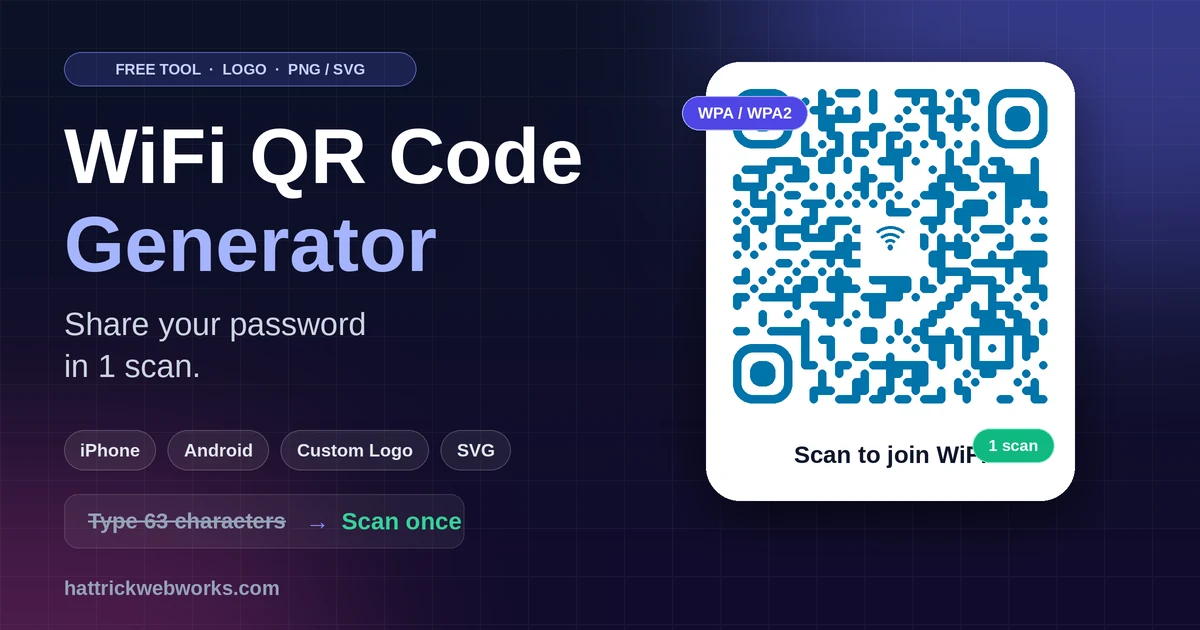
A WiFi QR code generator turns your network details into one scannable square. Guests point their device camera, tap a click, and connect and hence, nobody requires to type a loooooong password.
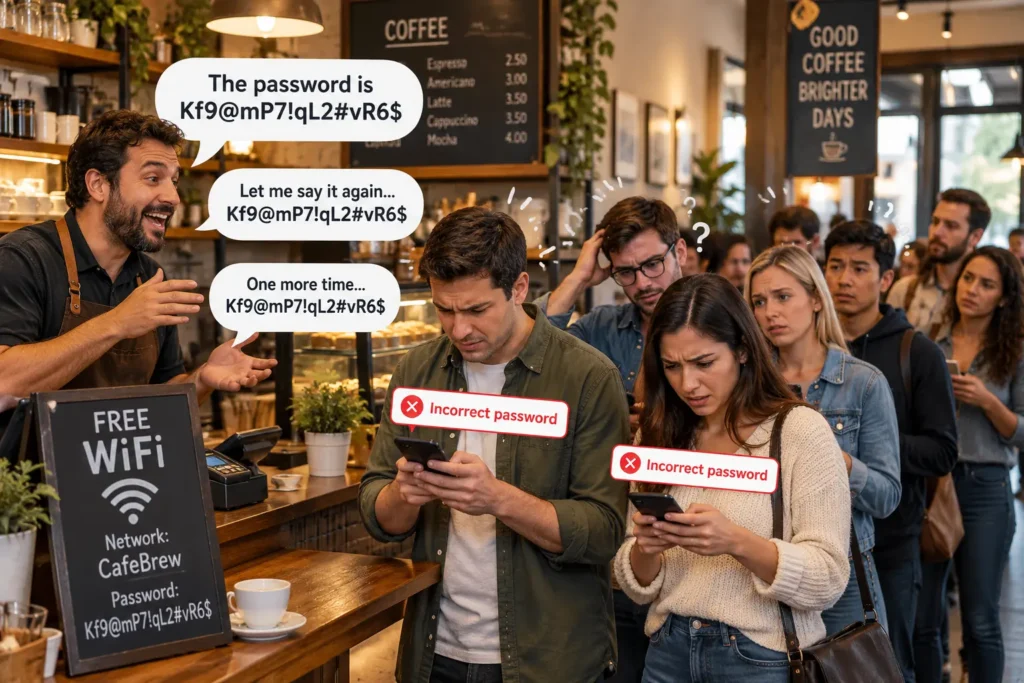
A free WiFi QR code generator fixes this problem in minutes. Also, the QR Code Generator from Hattrick Web Works lets you add your logo, choose your colors, and download PNG, JPEG, WEBP, or SVG files. In this guide, you will learn how to create, customize, print, and scan your own code.
What Is a WiFi QR Code Generator and How Does It Work?
A WiFi QR code generator packs your network name, password, and security type into a Secured QR code. Your phone reads that data and joins the network automatically and sync. As a result, no-one types a single character.
What Is Inside a WiFi QR Code
Every WiFi QR code stores a short text string. For example, this string describes a network called CafeGuest:
WIFI:T:WPA;S:CafeGuest;P:Welcome2026;;Here is what each part means:
- T is the security type (
WPA,WEP, ornopassfor open networks) - S is the network name, also called the SSID
- P is the password
Similarly, the three encryption choices in the Hattrick tool match the standard values. WPA/WPA2 uses WPA, WEP uses WEP, and an open network uses nopass.
Why Scanning Beats Typing
Typing a long password on a phone causes mistakes. For instance, a 63-character password, the maximum length, is nearly impossible to type without an error. In contrast, one scan connects the guest instantly.
Moreover, scanning removes confusion between similar characters. A capital I and a lowercase l look identical on many screens, but a camera reads them correctly.
How to Use the Hattrick WiFi QR Code Generator in 6 Steps
Follow these six steps to build your first code. Additionally, you can use the tool to generate QR code for WiFi networks of any size. This WiFi QR code generator keeps every setting on one screen.
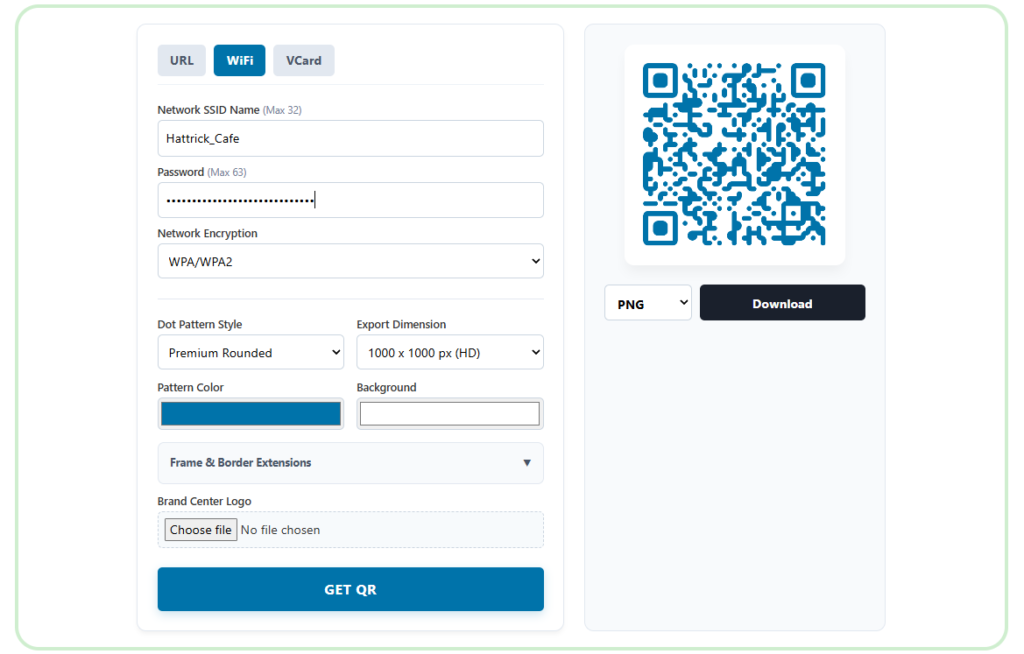
- Open the tool and select the WiFi tab at the top. ↗️
- Enter your Network SSID (up to 32 characters). Match your router’s name exactly, including capital letters.
- Type your password (up to 63 characters). The field masks the characters as you type.
- Choose Network Encryption: WPA/WPA2, WEP, or Unsecured (Open).
- Customize the design. This step is optional, and the next section covers every option.
- Pick a size and format, click GET QR, and then press Download.
Pro tip: Most modern routers use WPA/WPA2. Choose WEP only for very old devices, because WEP is outdated and weak.
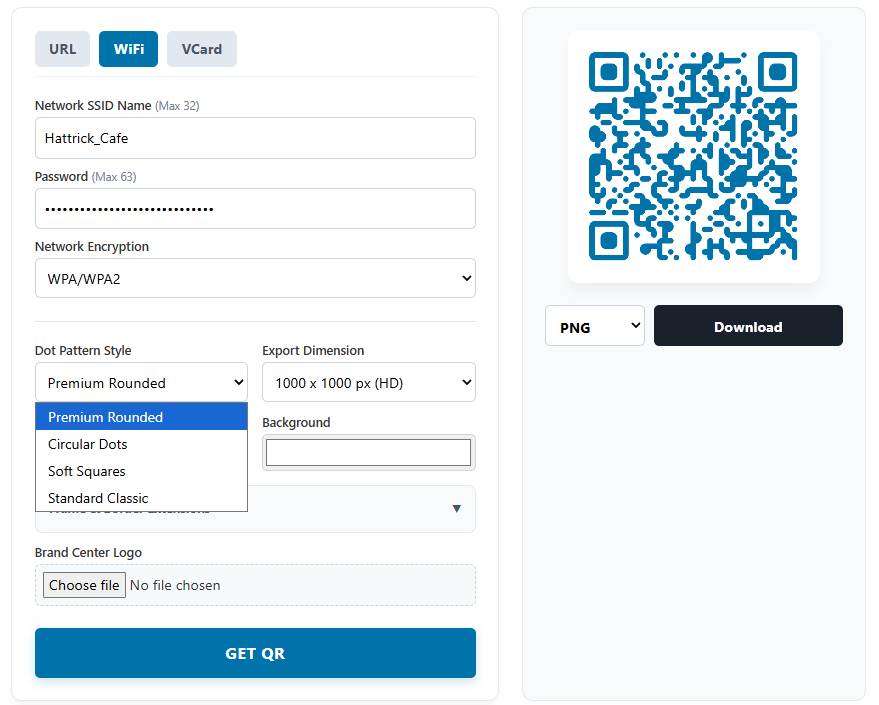
For example, a home user with a network called “Hattrick_Cafe” picks WPA/WPA2, types the password, and clicks GET QR. Then the preview appears next to the form.
Customize Your WiFi QR Code: Colors, Dot Styles, Logo & Frames
A branded code looks professional and builds trust. Furthermore, it matches your menu, hotel sign, or office reception.
Dot Pattern Styles
The tool offers four dot pattern styles:
- Premium Rounded for a soft, modern look
- Circular Dots for a playful design
- Soft Squares for a balanced look
- Standard Classic for the traditional square pattern
But even established decorative styles may scan less reliably on older phones. So first try your code and then print. Example: A café owner selects Standard Classic for a menu card and tests it with two phones.
Pattern and Background Colors
Pick a dark pattern color on a light background. For instance, the default blue (RGB 0, 115, 170) on white keeps strong contrast. In contrast, light yellow on white can be hard to scan in dim rooms.
Additionally, the color picker accepts exact RGB values. As a result, you can match your brand colors precisely.
WiFi QR Code Generator With Logo
The tool includes a Brand Center Logo upload. Click Choose file, select your logo, and the tool adds it to the code. Next, choose a Logo Inner Border: None, 4px Soft, 8px Clear, or 12px Solid.
For example, a hotel can upload its logo and compare the border options before printing. This WiFi QR code generator makes that comparison quick.
Pro tip: Keep your logo small. A large logo covers code data and can stop the scan from working. Always test the finished code on an iPhone and an Android phone.
Frame and Border
Use Frame & Border Extensions to add a frame around the code. Specifically, the QR Frame Border menu, Frame Color, and Border Color control the look. A frame helps the code stand out on a busy table card.
Which Export Size and Format Should You Choose?
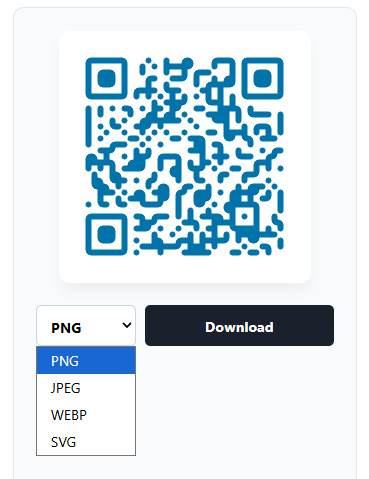
The tool exports four size options: 500 × 500 px, 1000 × 1000 px (HD), 2000 × 2000 px (Print), or a custom size up to 5000 px. Additionally, you can download PNG, JPEG, WEBP, or SVG files for completely FREE. Choose based on where you plan to use the code.
| Use case | Size | Format |
|---|---|---|
| Email or website | 500 × 500 px | PNG or WEBP |
| Everyday use | 1000 × 1000 px (HD) | PNG |
| Table cards and flyers | 2000 × 2000 px (Print) | SVG or PNG |
| Posters and banners | Custom (up to 5000 px) | SVG |
SVG is a vector format, so it stays sharp at any size. For example, a cafe that prints a table tent today and a window poster next month can reuse one SVG file.
How to Scan a WiFi QR Code on iPhone and Android
Any WiFi QR code generator produces codes that phones read the same way. Therefore, your guests need no special app.
iPhone
- Open the Camera app.
- Point it at the QR code.
- Tap the banner that offers to join the network.
- Confirm to connect.
Android
Open the Camera app or Google Lens and point it at the code. Then tap the prompt to connect. However, steps differ by brand and Android version. If the camera does not respond, many phones also include a QR scanner in the Wi-Fi settings.
Troubleshooting a Code That Will Not Scan
- Glare: Print on matte paper instead of glossy.
- Small print: Make the code at least about 2 × 2 cm (0.8 in).
- Wrong SSID: Regenerate the code with the exact capitalization.
- Low contrast: Use a darker pattern color on a lighter background.
Is It Safe to Create a WiFi QR Code Online?
Privacy matters because the code contains your password. Hence, choose a WiFi QR code generator that protects your data. Looking for a QR code generator for WiFi that respects privacy? The Hattrick tool processes everything on your device.
As a result, your password stays on your device while you build the code. In contrast, some online tools send your input to a server before they create the image.
Security tip: Anyone who scans the code can read the password. Therefore, use a guest network, not your main one. Also make a note a WiFi QR code stores the password itself. If you change your password, generate and print a new code.
5 Real-World Uses for a WiFi QR Code Generator
A WiFi QR code generator fits almost any business. Here are five examples:
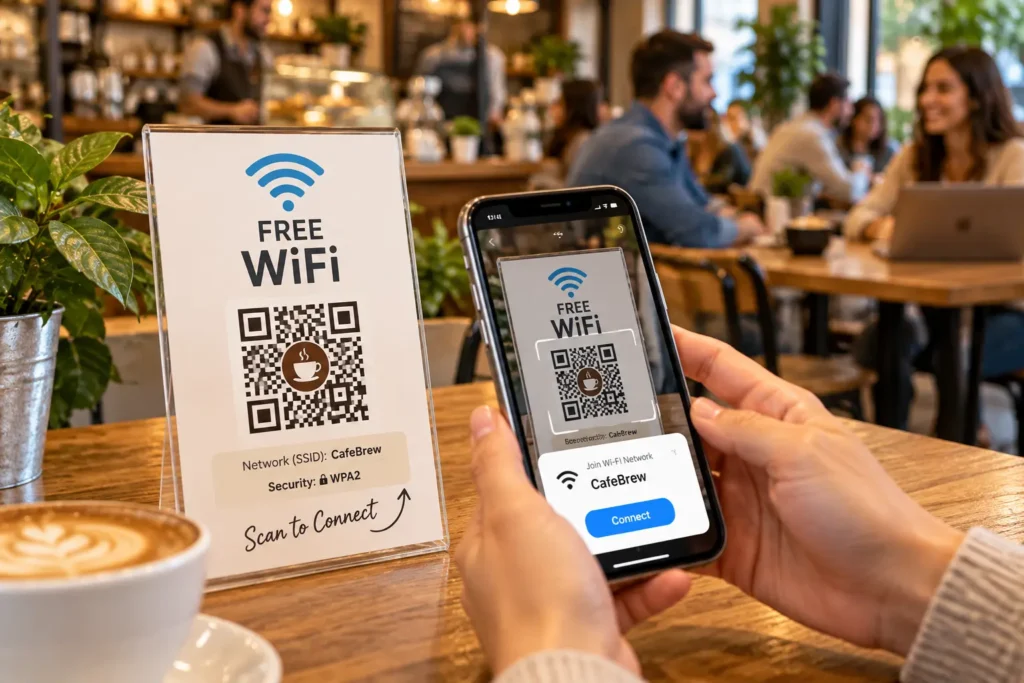
- Cafés and restaurants: Print the code on table tents. Guests join before they order.
- Airbnb and rentals: Place the code in the welcome folder. Guests connect on arrival.
- Office guest WiFi: Display the code at reception. Visitors no longer interrupt your staff.
- Coworking spaces: Print separate codes for members and day-pass visitors.
- Events and workshops: Add the code to your slides or signage.
Additionally, use Font Finder to choose a readable font for the line beneath your code, such as “Scan to join WiFi.”
WiFi QR Code Best Practices: Print and Security Checklist
Whichever WiFi QR code generator you use, follow this checklist:
- Test on two phones, one iPhone and one Android, before you print.
- Print at least about 2 × 2 cm. Print larger for posters viewed from a distance.
- Keep strong contrast between the pattern and the background.
- Place the code at eye level, away from windows and glare.
- Use a guest network instead of your main network.
- Change the password regularly, and reprint the code each time.
- Add a text label that says “Scan to join WiFi.” Also print the network name as a backup.
More Free Tools from Hattrick Web Works
Our WiFi QR code generator is one of several free tools we build for business owners and agencies. Planning a website for your cafe or hotel? Estimate your budget with the Website Cost Calculator.
Also, our team builds custom WordPress websites that load fast and convert visitors. For more details, visit the Hattrick Web Works Blog Hub.
Frequently Asked Questions
Is the WiFi QR code generator free with no sign-up?
Yes. The Hattrick WiFi QR code generator is free to use. You do not need an account, and the codes carry no watermark.
Which network encryption should I choose?
Choose WPA/WPA2 for most modern routers. Select WEP only if your old router requires it. Pick Unsecured (Open) only for networks without a password.
What is the maximum length for the SSID and password?
The tool accepts up to 32 characters for the SSID and up to 63 characters for the password.
Can I add my logo to a WiFi QR code?
Yes. Use the Brand Center Logo upload to place your logo in the center. Then choose a Logo Inner Border and test the code before printing.
Does a WiFi QR code work on iPhone and Android?
Yes. The camera app on current iPhones and most Android phones can read the code. Steps vary slightly by device.
What happens if I change my WiFi password?
The old code stops working. Therefore, generate a new code with the updated password and replace your printed copies.
Create Your Free WiFi QR Code Today
The right WiFi QR code generator saves time, reduces typing errors, and gives guests a smooth first impression. Moreover, a branded code in your logo and colors makes your business look polished.
easy to share your WiFi in one scan? Try the Hattrick Web Works WiFi QR Code Generator now. Add your logo, choose your colors, and download your code in seconds.